How to Convert HEIC to JPG (Because Apple Decided to Make Things Complicated)
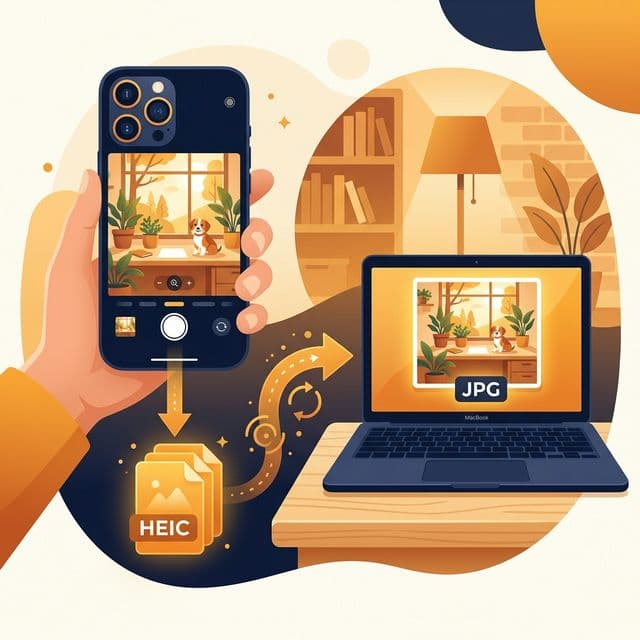
You sent yourself some vacation photos from your iPhone. Or a client emailed you a batch of product shots. You excitedly double click the first one and... nothing. Windows just stares at you blankly. The files end in .heic and your computer acts like you handed it a document written in ancient Sumerian.
Welcome to one of the most common tech annoyances of the last decade. Let's sort this out.
So what even is HEIC?
HEIC stands for High Efficiency Image Container. I know, catchy name. It's basically Apple's fancy photo format that they started using as the default on iPhones back in 2017 with iOS 11.
And here's the thing: it's actually pretty good. Like, genuinely impressive technology. A HEIC photo is roughly half the sizeof a JPEG at the same visual quality. If you take a lot of photos (and who doesn't), that means your 128GB iPhone effectively has double the storage for photos compared to using JPEG.
The problem? Almost nothing outside of Apple land can read HEIC files. Windows doesn't support it natively. Most email clients reject it. Half of the websites on the internet have no idea what to do with it. It's like Apple invented a better wheel but made it square shaped so it only works on Apple roads.
The fastest fix: convert in your browser (no upload)
I'm putting this first because it's probably what you need right now. Our HEIC to JPG converter does the whole thing in your browser. Drop the file, get a JPG back.
Why does the “in your browser” part matter? Because most other HEIC converters upload your photos to their servers. And look, phone photos are personal. They might have your face, your kids, your home, GPS coordinates of where you took them. Sending all that to some random server feels... not great.
Our converter uses a thing called heic2any, which is a WebAssembly library that decodes HEIC right there on your device. Your computer does all the work. Nothing gets sent anywhere. If you open the network tab in your browser's developer tools while converting, you'll see exactly zero image uploads happening.
Stop the problem before it starts (iPhone settings)
If you're tired of dealing with HEIC files every time you transfer photos, you can tell your iPhone to just... not make them anymore. Or at least convert them automatically when transferring.
There are two settings that help here:
Option A: Shoot in JPEG from the start
Go to Settings, then Camera, then Formats. Pick “Most Compatible.” Now your iPhone shoots in JPEG. Simple. But you lose the storage savings that HEIC gives you, so keep that in mind if your phone is already running low on space.
Option B: Auto convert when transferring (the smart way)
Go to Settings, then Photos, then Transfer to Mac or PC. Select “Automatic.” Now your iPhone keeps using HEIC internally (saving space) but automatically converts to JPEG when you plug in a USB cable or AirDrop to a non Apple device. Best of both worlds, honestly.
The Windows approach
If you want Windows itself to understand HEIC files, you can install the HEIF Image Extensionsfrom the Microsoft Store. It's free. After installing, Windows Photos and most Windows apps can open .heic files directly.
Quick heads up: there's also a paid “HEVC Video Extensions” for like $0.99. You do not need the paid one for photos. The free HEIF extension is enough.
After installing, you can open any HEIC file in Windows Photos and use Save As to export it as JPG. Works fine, just a bit slow if you have a lot of files.
The Mac approach
Mac users actually have it easy here. Preview handles HEIC natively. Open the file, go to File then Export, pick JPEG, set your quality, and save. Done.
Got a whole folder of HEIC files? Select them all in Finder, right click, go to Quick Actions, then Convert Image, and pick JPEG. macOS will batch convert the lot. Takes about two seconds per file.
HEIC vs JPG: the honest comparison
| HEIC | JPG | |
|---|---|---|
| File size | Winner. About 50% smaller. | Bigger, but not unreasonable |
| Quality | Better at the same file size | Good. Been good for 30 years. |
| Transparency | Supported | Nope |
| Compatibility | Apple stuff mostly | Literally everything ever made |
| Browser support | Safari. That's about it. | All of them since forever |
| Best use | Keeping photos on your iPhone | Sharing with the rest of the world |
Basically: HEIC is technically better but practically useless outside Apple's ecosystem. JPG has been around since 1992 and literally every piece of software on Earth understands it. Sometimes boring and reliable beats fancy and incompatible.
“But does converting lose quality?”
This is the question everyone asks, and the answer is: technically yes, practically no.
Both HEIC and JPG are lossy formats. They both throw away some data to make files smaller. When you convert HEIC to JPG at 90% quality, the result looks identical to the human eye. We're talking about differences that literally only show up when you zoom in to 400% and squint at individual pixels. For any normal use case (printing, sharing, posting online, sending to clients) the quality difference is invisible.
The quick version
- HEIC is Apple's photo format. Half the size of JPEG. But nothing outside Apple supports it well.
- Fastest fix: use a browser based HEIC to JPG converter. No upload, no signup.
- iPhone fix: set “Transfer to Mac or PC” to “Automatic” in Settings.
- Windows fix: install free HEIF Image Extensions from Microsoft Store.
- Quality loss when converting? Basically zero at 90% quality.
Need to convert some HEIC photos right now?
Your photos stay on your device. No server involved. Takes about 5 seconds.