Image Aspect Ratios Explained: 16:9, 4:3, 1:1, and Every Ratio You Actually Need
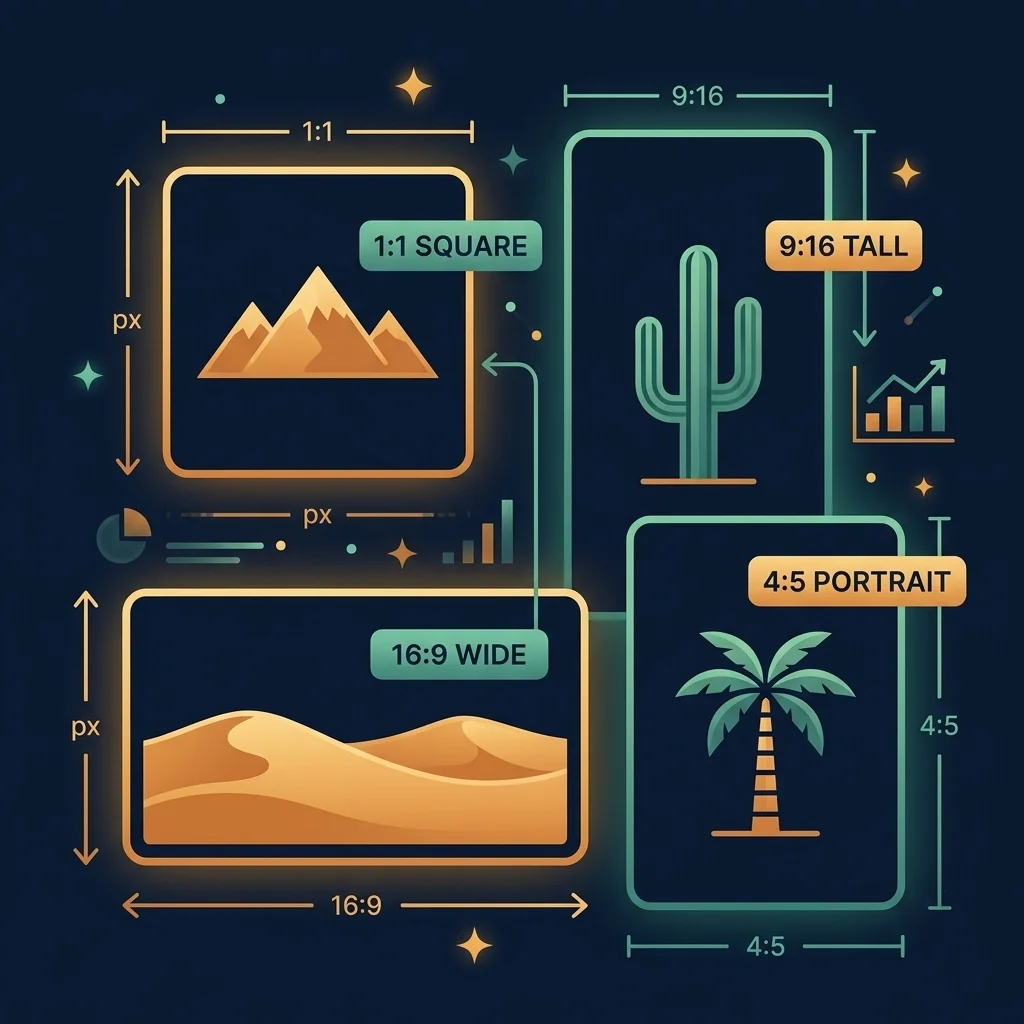
You upload a photo to Instagram. The top of your subject’s head gets chopped off. You upload the same photo to YouTube as a thumbnail and it has black bars on the sides. You print it as a 5x7 and a strip of the left side is missing. Same photo, three different problems. The culprit every time is aspect ratio.
Aspect ratio is one of those things that nobody thinks about until something goes wrong. And when it goes wrong, people usually blame the platform (“Instagram cropped my photo!”) when the real issue is that they uploaded an image with the wrong shape.
This guide covers what aspect ratio actually means, how it differs from resolution, every common ratio you will encounter, and exactly which ratio to use for every major platform. With a cheat sheet table because nobody wants to memorize this stuff.
What is an aspect ratio?
An aspect ratio is the proportional relationship between the width and height of an image. It is written as two numbers separated by a colon: width:height. That is it. It describes the shape of the image, not the size.
A 16:9 image is 16 units wide for every 9 units tall. The units can be anything. Pixels, inches, centimeters, cubits. The point is the proportion. A 1920x1080 image is 16:9. A 3840x2160 image is also 16:9. A 160x90 thumbnail is also 16:9. All three have the same shape. They are just different sizes.
A 1:1 image is a perfect square. Width equals height. 1000x1000 pixels. 500x500 pixels. Any square.
A 9:16 image is the same shape as 16:9 but rotated 90 degrees. Tall and narrow instead of wide and short. This is portrait orientation. Your phone screen when you hold it vertically.
Aspect ratio is not resolution
People confuse these two constantly and it causes no end of trouble. Resolution is the total number of pixels: width times height. It defines the quality and detail of the image. Aspect ratio is the shape. These are independent properties.
A 1920x1080 image is 16:9 at Full HD resolution (about 2 megapixels). A 640x360 image is also 16:9 but at a much lower resolution (about 0.2 megapixels). Same shape, vastly different quality. You can change the resolution of an image without changing its aspect ratio by scaling it proportionally: 1920x1080 becomes 960x540, still 16:9, just smaller.
You cannot change the aspect ratio without either cropping (cutting off part of the image) or adding padding (letterboxing). There is no way to turn a 16:9 image into a 1:1 square without losing content on the sides or adding bars on the top and bottom. This is the fundamental tension behind every cropping frustration on every platform.
Every common aspect ratio, explained
The social media cheat sheet
This is the part everyone actually wants. What exact ratio and pixel dimensions to use for each platform. Bookmark this table.
The single most useful tip from this table: if you are posting to Instagram feed and want maximum screen real estate, use 4:5 at 1080x1350. It takes up more space in the feed than a square or landscape image, which means more eyeball time as people scroll. Most social media managers know this. Now you do too.
What happens when you use the wrong ratio
Three things can happen, and none of them are good.
Cropping. The platform cuts off the parts of your image that do not fit. Instagram is aggressive about this. If you upload a 16:9 landscape image to a feed that expects 1:1 or 4:5, the left and right sides get sliced off. Whatever was at the edges of your composition is gone. This is especially painful when the important part of the photo is off center.
Letterboxing. The platform adds black bars (or white bars, or blurred background bars) to fill the space your image does not cover. YouTube does this when you upload a 4:3 video to a 16:9 player. The video gets black bars on the sides. It looks fine but wastes screen space. For static images, some platforms add colored or blurred borders instead of black.
Stretching or squishing. The platform forces your image to fit by distorting its proportions. This makes circles look like ovals and squares look like rectangles. It looks terrible. Most modern platforms do not do this anymore because users complained (rightfully), but some older systems or poorly built websites still do.
How to change aspect ratio without distortion
You cannot change the shape of an image without either adding or removing content. There are exactly two clean approaches.
Crop it. Use our crop tool and select the target ratio. Position the crop frame over the part of the image you want to keep. The tool removes the rest. This is the most common approach and works perfectly when you have enough extra content around the subject to cut away.
Add padding or background. If you cannot afford to lose any part of the image, add colored bars or an extended background to fill the extra space. This is common for product images where you need a specific ratio but the product photo does not match. Place the product on a larger canvas with a matching background color.
What you should never do is stretch the image. Stretching distorts everything. Circles become ovals. People look wider or thinner than they are. It is immediately obvious and looks unprofessional.
Aspect ratios for print
Print has its own set of standard ratios that do not always match digital standards. This catches people off guard when they order prints of digital photos.
Most digital cameras (DSLR and mirrorless) shoot at 3:2. This maps perfectly to 4x6 inch prints, which is why 4x6 is the most common print size. No cropping needed.
But 5x7 prints are 7:5, and 8x10 prints are 5:4. Neither of these matches 3:2. When you order a 5x7 from a 3:2 photo, a narrow strip gets cropped from the long sides. When you order an 8x10, a more noticeable amount gets cropped. If there is something important right at the edge of your composition, it might get cut.
The fix is to crop your image to the target print ratio before ordering. Use the crop tool with a custom ratio, position the crop frame to keep everything important in frame, and submit that cropped version for printing. No surprises.
Why phone cameras use weird ratios
Your phone probably defaults to 4:3 for photos. This is not because of any deep technical reason. It is because phone sensors are physically shaped at 4:3 and shooting at the native sensor ratio gives you the highest resolution. When you switch to 16:9 in your camera app, the camera is actually cropping the 4:3 sensor output, throwing away pixels from the top and bottom. You get a wider image but at lower resolution.
For maximum quality, shoot at 4:3 (the default) and crop to your desired ratio afterward. That way you start with all the pixels your sensor can capture and lose only what you choose to remove, not what the camera chose.
The practical takeaway
The honest truth is that most people do not need to memorize aspect ratios. You just need to know three things. First, every platform expects a specific shape and will crop your image if it does not match. Second, crop your image to the right ratio before uploading and you avoid all the problems. Third, when in doubt, use the cheat sheet table above.
Our crop tool and resize tool both let you lock to specific aspect ratios. Set it to 4:5 for Instagram, 16:9 for YouTube, 1:1 for profile pictures. Crop, download, upload. The image fits perfectly every time. No unexpected cropping, no black bars, no complaints.
Crop to Any Aspect Ratio
Lock to 16:9, 4:5, 1:1, or any custom ratio. Crop precisely, download instantly. Free and private.