Image Resolution Explained: Pixels, Megapixels, and Why Bigger Is Not Always Better
Your phone says it has a 108 megapixel camera. Your friend’s older phone has 12 megapixels. Yours must take nine times better photos, right? Not really. In fact, in many lighting conditions, the 12 megapixel phone takes better looking photos. The megapixel number on the spec sheet tells you far less than marketing departments want you to believe.
Resolution is one of the most misunderstood concepts in digital imaging. People think more pixels equals better quality. Camera companies encourage this belief because a bigger number on the box sells more cameras. But the relationship between resolution and quality is more complicated than that, and understanding it will save you from buying things you do not need and uploading files that are ten times larger than necessary.
What resolution actually means
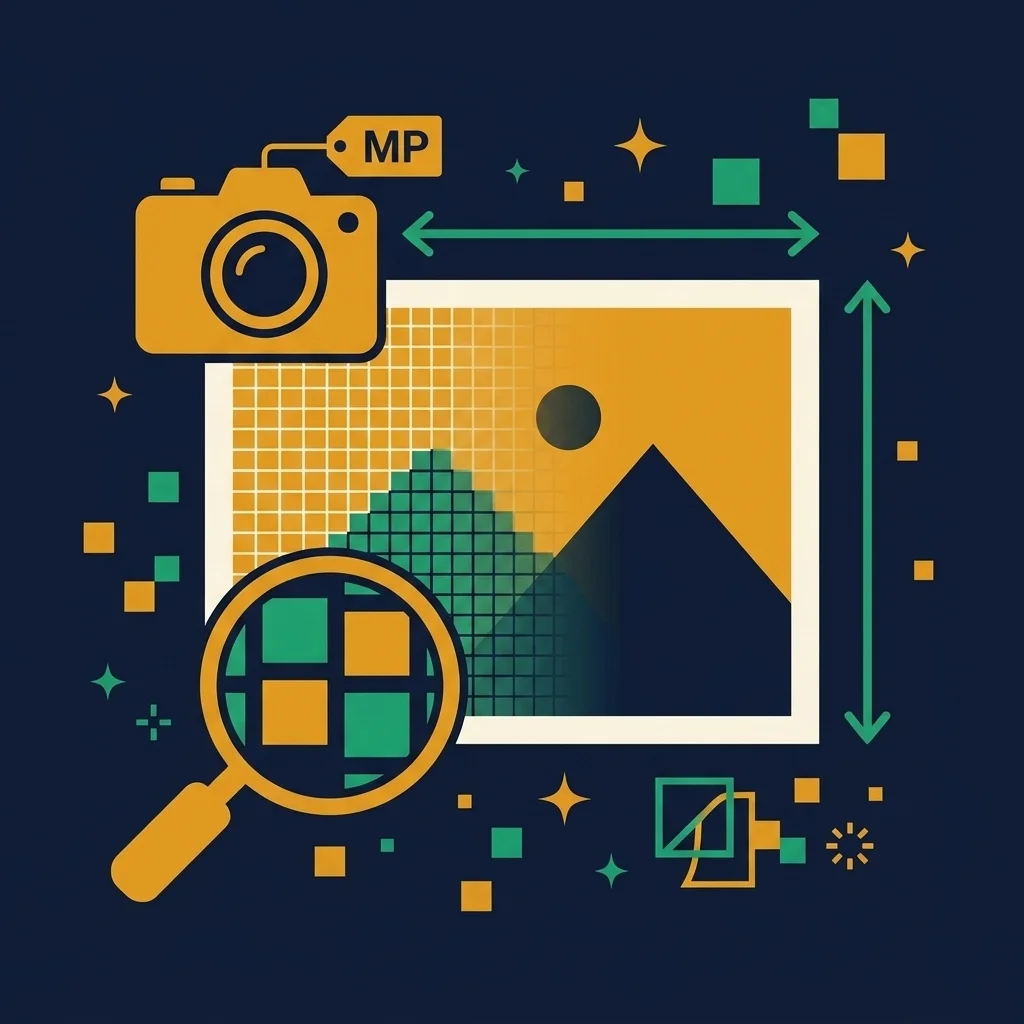
A digital image is a grid of tiny colored squares called pixels. Resolution is the number of pixels in that grid, measured as width times height. A 1920x1080 image has 1920 pixels horizontally and 1080 pixels vertically. Multiply them together and you get about 2.07 million pixels total.
That is the entire concept. Resolution is just the pixel count. A higher resolution image has more pixels in its grid, which gives you more potential detail. The word “potential” is doing a lot of work in that sentence.
More pixels means the grid is finer, so you can represent smaller details. But those details have to actually exist in the captured image. If the camera lens is blurry, or the subject is out of focus, or the lighting is poor, having 100 million pixels just gives you 100 million pixels of blurriness. Resolution is a ceiling on detail, not a guarantee of it.
Pixels vs. megapixels
A megapixel is one million pixels. That is the only thing it means. A 12 megapixel camera produces images with approximately 12 million pixels total. At a 3:2 aspect ratio, that works out to about 4000x3000 pixels.
Camera companies use megapixels as a marketing spec because bigger numbers sound impressive. A 108MP camera sounds nine times better than a 12MP camera. But megapixels only measure the dimensions of the output image. They say nothing about lens quality, sensor size, light sensitivity, image processing, or color accuracy. All of which have more impact on perceived image quality than pixel count.
Here is a concrete example. The iPhone 15 Pro has a 48MP main camera with a relatively large sensor and excellent image processing. A cheap 108MP phone camera might have a physically smaller sensor packed with more pixels. Each individual pixel on the smaller sensor captures less light, producing more noise and less color accuracy. The 48MP image from the iPhone looks noticeably better than the 108MP image from the budget phone, despite having less than half the megapixels.
Megapixels matter when you need to crop heavily or print very large. Beyond that threshold, improvements in sensor quality, lens sharpness, and computational photography matter far more.
Resolution vs. file size
A common confusion. Resolution is the pixel dimensions. File size is how many bytes the file occupies on disk. They are related but not the same thing.
A 4000x3000 image (12MP) can be 2 megabytes or 20 megabytes depending on the format and compression settings. A JPEG at quality 80 of the same image will be dramatically smaller than a PNG or an uncompressed TIFF. Same pixels, vastly different file size.
Compression is what makes this possible. JPEG compression analyzes the image and discards visual information that human eyes are unlikely to notice. The more aggressively you compress, the smaller the file, but the more quality you lose. At quality 80, most photographs look indistinguishable from the original. At quality 30, you start seeing blocky artifacts and color banding.
If your image files are too large, the answer is usually better compression, not lower resolution. Use our image compressor to reduce file size without changing dimensions. You keep all your pixels but the file shrinks by 60 to 80 percent.
PPI vs. DPI: the terms everyone confuses
PPI stands for pixels per inch. It measures how many pixels occupy one inch of display space. A 1920px image displayed on a 24 inch monitor (which is roughly 20 inches of viewable width) is displayed at about 96 PPI. The same image on a 5 inch phone screen is displayed at about 384 PPI.
DPI stands for dots per inch. It measures how many ink dots a printer puts in one inch of paper. A home inkjet printer might output at 300 to 600 DPI. A professional press runs at 1200 to 2400 DPI.
In everyday conversation, people use PPI and DPI interchangeably. For practical purposes, when someone says “300 DPI for printing,” they mean “your image should have at least 300 pixels for every inch of the final print.” The distinction between PPI and DPI only matters to professional print technicians. For more on this, our DPI explainer covers it in depth.
How much resolution do you actually need?
The most important takeaway from this table is that you almost never need the full resolution from a modern camera for web use. A 12 megapixel photo is 4000x3000 pixels. Your website hero image needs 2400 pixels wide at most. Your Instagram post needs 1080. Your profile picture needs 400. You are carrying around a camera that captures four to twenty times more pixels than any web use case requires.
The megapixel marketing lie
Phone companies have been in a megapixel arms race for years. 12MP. 48MP. 108MP. 200MP. The implication is always the same: more megapixels means better photos. This is misleading at best and dishonest at worst.
What actually determines photo quality in a phone camera is a combination of sensor size (bigger sensors capture more light), pixel size (bigger individual pixels are more sensitive and produce less noise), lens quality (sharper lenses resolve more real detail), and image processing (computational photography can compensate for hardware limitations).
Most 108MP phone cameras use pixel binning, which combines groups of four or nine tiny pixels into one larger virtual pixel. A 108MP sensor in binning mode produces 12MP images with each “pixel” actually representing 9 sensor pixels worth of light data. The resulting 12MP image often looks better than the native 108MP image because each effective pixel captured more light.
The native 108MP mode is useful for exactly one thing: extremely heavy cropping. If you want to photograph something far away and crop to a tiny portion of the frame, those extra pixels give you more to work with. For normal photography, the binned lower resolution mode produces better results.
Downscaling works. Upscaling does not.
Making an image smaller (downscaling) always works perfectly. You have a 4000 pixel image and you need 1000 pixels. The software averages groups of four pixels into one, creating a smaller, sharp, clean image. No quality loss. No artifacts. Just fewer pixels, each one calculated precisely from the original data.
Making an image bigger (upscaling) is the opposite. You have 1000 pixels and need 4000. The missing 3000 pixels per row do not exist. Traditional resizing smears colors together, creating blur. AI upscaling generates plausible new pixels, which is impressive but not perfect. The fundamental rule remains: you cannot create detail that was never captured.
This is why the best strategy is always to capture and save at the highest resolution possible, then downscale for specific uses. Use our resize tool to scale images down to the exact dimensions you need for each context. Start big, scale down. Never the reverse if you can avoid it.
Resolution for web performance
Uploading a 6000x4000 image to your website when it displays at 1200 pixels wide is one of the most common performance mistakes on the internet. The browser downloads all 24 megapixels, then scales the image down to 1200 pixels for display. Your visitor just downloaded five times more data than necessary. On mobile connections, this can add seconds to your page load time.
The fix is simple. Resize your images to the actual display size before uploading. For retina displays, use 2x the display size (so 2400px for a 1200px display). Then compress the result. A 2400px image at WebP quality 80 is a fraction of the file size of a 6000px uncompressed original, and your visitors cannot tell the difference.
The practical takeaway
Resolution is the pixel grid of your image. More pixels means more potential detail, but actual quality depends on much more than pixel count. Do not be impressed by megapixel numbers alone. Do not upload massive images to the web. Do not print at resolutions your eyes cannot distinguish from the intended viewing distance.
Match your resolution to the actual use case. Use the table above as your reference. Resize down for web, keep originals at full resolution for future use, and stop worrying about whether 12 megapixels is “enough.” For everything except extreme cropping and massive print runs, it absolutely is.
Resize Images to the Right Resolution
Scale images to exact pixel dimensions for web, social media, or print. Free, instant, in your browser.