How to put two pictures side by side, with sizes that fit
Putting two pictures next to each other sounds like the easiest job in image editing, and then the result comes out with one photo tiny, a strange black gap, or a file too big to send. Most of that comes down to a little arithmetic about sizes and ratios. Here it is, with the numbers from merging two real photos.
- How do I put two pictures side by side?
- Add both to Merge Images, choose Side by side, pick a gap and background, and download.
- How big will the result be?
- Side by side, the widths add up at a shared height. Two 1200 × 800 photos with an 8 pixel gap make 2408 × 800.
- Will it fit an Instagram post?
- If the combined ratio is between 1.91:1 and 4:5. Two portrait photos side by side fit. Two landscape photos side by side get cropped.
- Why is the file so big?
- The merge is saved as PNG. Ours was 3.95 MB as PNG and 644 KB as a quality 90 JPEG.
The one rule: ratios add
To sit two photos side by side without bars or stretching, they must share a height. Once they do, their widths simply add up. That makes the shape of the result easy to predict: side by side, the aspect ratios add. A 3:2 photo is 1.5 times as wide as it is tall, so two of them side by side come out 3 times as wide as tall, a 3:1 strip.
Stacking works the same way turned on its side. The photos share a width, their heights add, and the result gets taller. Two 16:9 photos stacked come out at 16:18, almost square.
| Two photos, each | Side by side | Stacked |
|---|---|---|
| Square, 1:1 | 2:1 | 1:2 |
| Portrait, 4:5 | 8:5, or 1.6:1 | 4:10, or 1:2.5 |
| Phone portrait, 3:4 | 6:4, or 1.5:1 | 3:8 |
| Landscape, 3:2 | 3:1 | 3:4 |
| Wide, 16:9 | 32:9, or 3.6:1 | 16:18, about 0.89:1 |
| Phone screenshot, 9:16 | 18:16, about 1.13:1 | 9:32 |
Which pairs fit an Instagram post
Instagram's help centre says a photo keeps its full shape if its aspect ratio is between 1.91:1 and 4:5, and anything outside that range is cropped to fit. Put against the table above, that gives a quick rule for a two photo post:
| Pair | Layout | Combined shape | Fits a post? |
|---|---|---|---|
| Two portraits, 4:5 | Side by side | 1.6:1 | Yes |
| Two phone portraits, 3:4 | Side by side | 1.5:1 | Yes |
| Two phone screenshots, 9:16 | Side by side | 1.13:1 | Yes |
| Two squares | Side by side | 2:1 | Cropped slightly |
| Two landscapes, 3:2 | Side by side | 3:1 | Cropped heavily |
| Two wide photos, 16:9 | Stacked | 0.89:1 | Yes |
| Two landscapes, 3:2 | Stacked | 0.75:1 | Cropped slightly |
If your pair falls outside the range, crop each photo first so the combination lands inside it. Two 3:2 landscape shots, for example, fit side by side once each is cropped to 4:5, because 4:5 plus 4:5 is 1.6:1. The Crop tool has fixed ratios for exactly this.
What we measured
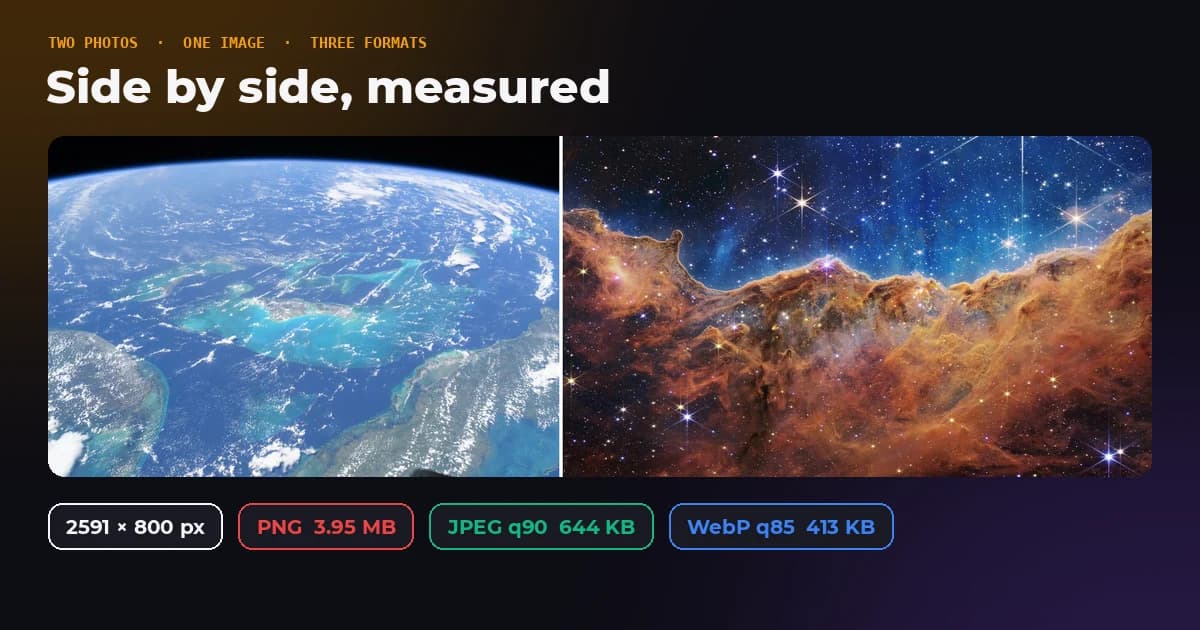
We merged two public domain NASA photos the way our tool does it: the Bahamas seen from the space station at 1200 × 800, and the Webb telescope's Cosmic Cliffs at 1200 × 694, with an 8 pixel white gap. Then we saved the result in three formats from the same browser engine a visitor would use.
| Layout | Size in pixels | PNG | JPEG, quality 90 | WebP, quality 85 |
|---|---|---|---|---|
| Side by side | 2591 × 800 | 3.95 MB | 644 KB | 413 KB |
| Stacked | 1200 × 1502 | 3.48 MB | 649 KB | 432 KB |
The side by side PNG was 6.1 times the size of the JPEG. PNG is lossless, which is right for screenshots, logos and anything with a transparent background, but for two photos it stores detail nobody can see. For email, messages or a post, convert the merged image with PNG to JPG or PNG to WebP before you share it.
Notice also that the Cosmic Cliffs photo became 1383 pixels wide in the side by side version, not 1200. To match heights, our tool scales every photo to the height of the tallest one, so a shorter photo is enlarged. Here the change was small, but if you pair a 4000 pixel photo with a 600 pixel one, the small one gets blown up almost seven times and looks soft next to its neighbour. Resize both to a similar size first with the Bulk Resizer.
Gaps, borders and backgrounds
- A white gap reads as a thin frame on light backgrounds and on paper. Around 8 to 16 pixels suits most photos.
- A black gap suits dark mode feeds and night photos.
- No gap makes the two photos read as one scene, which suits panoramas and before and after shots taken from the same spot.
- Transparent only matters if you keep the result as PNG, since JPEG has no transparency and fills it with a solid colour.
One detail we fixed along the way: a canvas cannot read a website's CSS colour variables, so a merge tool that paints its gap with one ends up with a black gap whatever you intended. Ours sets white, black or transparent explicitly, so the gap is always the colour you chose.
Making a good before and after
- Match the framing. Take both photos from the same spot, or crop both to the same area and ratio.
- Match the size. Resize both to the same pixel dimensions so neither is enlarged.
- Keep the order predictable. Before on the left or on top, after on the right or below.
- Label outside the photo if you can. A caption under the image is easier to read than text on top of it. If you do add text, the Add Text tool works on the merged file.
More than two photos
Our Merge Images tool takes up to six. Side by side and stacked work for any number, though six in a row makes a very long strip. The grid layout places photos in two columns, giving each the same cell and centring it, which is the tidiest option for three to six photos. For a designed layout with borders and rounded corners, the Collage Maker is the better fit.
Combine your photos
Side by side, stacked or in a grid, with your choice of gap and background. It runs in your browser, so your photos stay on your device.
The bottom line
Side by side, aspect ratios add. Stacked, the result gets taller by the same logic. Check the combined shape against where it is going, match the sizes before you merge so nothing is enlarged, and convert the PNG to JPEG or WebP before sharing. In our test that last step alone cut the file from 3.95 MB to 644 KB.
Frequently asked questions
Sources and method
Merges were built in headless Chrome with the same layout rules as the Merge Images tool: every photo scaled to the tallest height for side by side, or the widest width for stacked, with an 8 pixel white gap. Test photos: ISS071-E-449837, the Bahamas from the International Space Station (NASA), and the Webb telescope's Cosmic Cliffs in Carina (NASA, ESA, CSA, STScI), both resized to 1,200 pixels wide. File sizes come from the browser's own PNG, JPEG and WebP encoders. Instagram's supported ratios are taken from its help centre.
- Instagram Help Center, image resolution of photos you share on Instagram
- NASA Image and Video Library, the Bahamas from the space station
- NASA Image and Video Library, Webb's Cosmic Cliffs in Carina
- Aspect ratio (image), Wikipedia
Merging a 1200 × 800 photo and a 1200 × 694 photo side by side produced a 2591 × 800 image that was 3.95 MB as PNG and 644 KB as a quality 90 JPEG. FreeImageTools, "How to Put Two Pictures Side by Side (Sizes That Fit)", September 27, 2026, https://freeimagetools.org/blog/combine-images-side-by-side